


Dual Monitor Setup Guide: Best Cables, Ports & Display Tips
 804
804Introduction to Dual Monitor Setups
Dual monitor arrangements are now a common feature among professionals, as well as technologically enthusiastic amateur users, wishing to enjoy better productivity, enhanced multitasking, and sightseeing. Dual monitors can make a big difference to your productivity, regardless of whether you make content by editing videos or being an engineer to work with CAD software, or a trader who has to monitor multiple data streams at the same time. In effect, this configuration will spread your desktop space onto two screens, which can be used at the same time and be more visually organized.
Other than improved productivity, dual monitors are also more comfortable and focused. You will not need to keep switching between windows or tabs, but will be able to see applications side by side. Nonetheless, the process of getting a smooth display experience is not as simple as only two monitors should be plugged in. The right cables, compatible ports and correct configuration are essential in enhancing the optimum performance, image quality and synchronizing the displays.
Choosing the Right Monitors for Your Setup
The success of a dual monitor setup depends on the choice of monitors. Although nearly all two-screen devices are compatible, matching displays with similar features guarantees similar performance and visual compatibility. Take into account such important specifications as the resolution, refresh rate, and panel type. An example of this is when connecting one 4K monitor and one 1080p display, because scaling can be a problem, and different refresh rates can lead to the inability to have the same level of smooth motion across all screens.
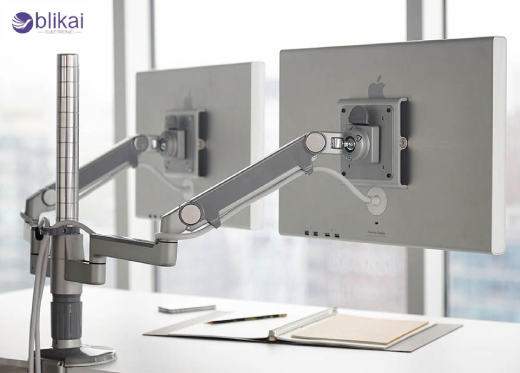
Most professionals like 24-27 inch monitors, which is the optimal size between screen space and desk space. In case you are editing media or in the design area, then you want to use IPS panels that provide better color accuracy and viewing angle. In the case of gaming or high-performance activities, a VA or OLED that has a higher refresh rate might be perfect. The ergonomics are also important when using adjustable stands or VESA mounts, to get the monitors exactly in the visual range where they are comfortable to look at. Having similar color calibration and brightness in the two displays will also enhance the visual experience.
Understanding Display Ports and Cable Types
This is decided by the connection interface between your monitors and PC, which defines the maximum resolution, refresh rate and stability of the signal you can get. The existing systems tend to offer a variety of options: HDMI, DisplayPort, USB-C, DVI and outdated VGA. Each of them possesses certain capabilities and bandwidth limitations to consider during the development of the high-performance dual monitor system.
Comparison of Common Display Cables
|
Cable Type |
Max Resolution & Refresh Rate |
Typical Use |
Notes |
|
HDMI 2.0 / 2.1 |
Up to 4K @ 120Hz / 8K @ 60Hz |
TVs, gaming monitors |
Common, supports audio and HDR |
|
DisplayPort 1.4 / 2.0 |
Up to 8K @ 60Hz / 16K (DP 2.0) |
PC monitors, professional displays |
Best for high refresh rates and daisy-chaining |
|
USB-C (with DP Alt Mode) |
Up to 4K @ 60Hz or higher |
Laptops, docking stations |
Compact, supports power and data transfer |
|
DVI-D |
Up to 1080p @ 144Hz |
Older PCs and monitors |
Digital only, limited 4K support |
|
VGA |
Up to 1080p (analog) |
Legacy systems |
Poor signal quality at high resolutions |
When using dual monitors, the connections should be digital, like HDMI or DisplayPort connections, which are the most successful and clear. Should your graphics card be DisplayPort Multi-Stream Transport (MST) capable, then you can even daisy-chain compatible monitors without the multiple ports. In the meantime, USB-C with DisplayPort Alternate Mode has become a ubiquitous feature of modern laptops, which provides video, audio and power in a single cable.
How to Set Up and Configure Dual Monitors
The proper installation of dual monitors requires hardware and software configuration. Start by attaching your displays to the PC or laptop by using compatible cables. After the connection, switch on the monitors and your system. Most modern operating systems will automatically detect the new display; however, by manually configuring the new display, the display is guaranteed to align optimally as well as perform.
Step-by-Step Configuration
Detect Displays:
Windows: Use the computer settings screen, display, then the option to detect both monitors, which is where the Windows look. macOS users can go to System Preferences - Displays - Arrangement.
Set Display Mode:
Choose between Extend (expands your workspace), Duplicate (mirrors your screen), or Second Screen Only.
Arrange Orientation:
Drag the display icons to match their physical layout (left, right, or vertical stacking).
Adjust Resolution & Scaling:
Match resolution and scaling to prevent size discrepancies.
Select Primary Display:
Choose the main screen for your taskbar or dock placement.
Advanced setups are also provided by graphic drivers (NVIDIA, AMD, Intel), such as color calibration, tuning of refresh rate, and custom display setups. To those professionals who have capabilities of docking stations or external GPUs, it is advisable to keep all the firmware and drivers up to date to ensure compatibility and stability of signals.
Troubleshooting Common Dual Monitor Issues
Dual monitor setups may sometimes run into technical difficulties, in spite of having a proper setup. When the second monitor is not detected is one of the most widespread issues. It might be because of broken cables, the use of old drivers or wrong input choice. Begin by verifying cable integrity and selecting all the monitors to the right input source.
In case one of the screens flickers or the display is not in the right resolution, the graphics driver is usually fixed by changing it. Color or brightness variations can be a sign of incompatible profiles - calibrate both displays with available internal or external software. The other aspect that Laptop users should check is the ability of its graphics card to serve more than one external screen; the inbuilt graphics normally has limitations with regard to its output.
The end users, who rely on adapters (e.g., HDMI-to-DVI or USB-C-to-HDMI), will have to ensure that they are able to support the resolution and refresh rate they want. Adapters of poor quality may result in signal degradation or even failure to display. In more complicated systems with docking stations, test each monitor individually to identify the cause of the issue as just the dock, the cable, or the port.
Display Optimization and Productivity Tips
Having the two monitors in place and working, they can be optimized to get maximum comfort and efficiency by fine-tuning the potential arrangement and settings. Place the monitors in a way that the upper edges are in line with the line of sight and to form an arc of viewing to the eye tilt them inwards a bit. Suppose you are using a single screen then maintain one in the middle and leave the other at the side.
FAQ: Dual Monitor Setup Questions
Can I use two monitors with one HDMI port?
Yes, using an HDMI splitter or docking station, which allows using MST. The bandwidth will, however, be shared among both monitors, and this will restrict the resolution and refresh rate.
Do dual monitors slow down the computer?
Generally, no. However, running high-resolution or high-refresh-rate monitors can increase GPU load, especially during graphics-intensive tasks.
What’s the best cable for 4K dual monitors?
Optimal HDMI 2.1 and DisplayPort 1.4 that provide stability in video refresh rate and 4K display are used. USB-C DisplayPort Alt Mode is also a good choice with laptops.
Can I mix 60Hz and 144Hz monitors?
Yes, but note that each monitor will operate at its own refresh rate. You may notice less smooth transitions when dragging content between screens.
Why is my second monitor flickering or not detected?
Check cable quality, port selection, and GPU settings. Updating display drivers or trying a different port often resolves detection issues.
Conclusion
A dual monitor setup is not just a luxury, but a carefully designed one, which can help in working more efficiently, less cluttered and more comfortable to the eye. With the correct choice of monitors, cables, and ports, users can not only have high-quality performance but also display the same visuals on screens.
Also, it is important to note that you should place your monitors in the most ergonomic position, always update your firmware and drivers and always recalibrate your displays to achieve the best color balance. Designed to suit any type of work, be it coding, designing, gaming or handling multiple applications at once, the dual monitor setup offers a professional, suggestive workspace that is very flexible with maximum output and comfort.
Some images are sourced online. Please contact us for removal if any copyright concerns arise.





