


How to Fix a Bug on Monitor: Display Components Explained
 562
562Understanding Display Bugs and Monitor Glitches
The computer monitors of today are very sophisticated electronic equipment that is used to display digital images with exquisite accuracy. However, even the most sophisticated monitors with all the engineering still sometimes have bugs or display problems. These screen errors, whether they are flickering, non-functional pixels, or disfigured colors, can be somewhat annoying, up to the point of being extremely disruptive, and it depends on their root cause. This paper will discuss the primary monitor bug types, what is inside the monitor to render an image, and give a step-by-step guide to troubleshooting and fixing to put your display back to work.
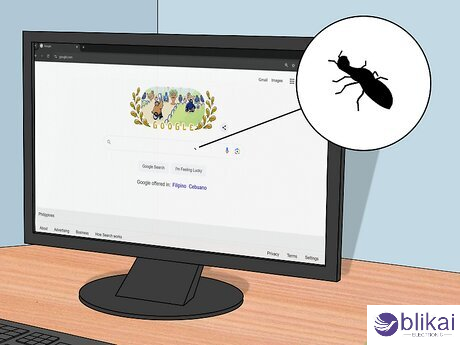
Common Types of Monitor Bugs and Glitches
Monitor bugs are available in a large variety, and each symptom narrates the story of what may be wrong. Identifying the kind of glitch is the initial step towards effective resolution of the glitch.
Dead or Stuck Pixels:
Stuck pixels are fixed to a single color, whereas dead pixels are fixed to black tiny dots that never illuminate. They tend to arise as a result of faults in the LCD panel sub-pixel transistor or damaged control circuits.
Screen Flickering:
Flickering can occur when the graphics card refresh rate and frame rate do not match or when the power instability impacts the backlight. Malfunctioning cables and drivers that are obsolete are also usual factors.
Ghosting or Image Persistence:
Ghosting occurs when traces of previous images linger on the screen, caused by slow pixel response time or prolonged display of static images. It’s particularly common in older LCD panels or low-refresh monitors.
Color Distortion:
When the screen starts displaying bizarre colors, such as too red, green, or blue, then it is usually attributed to loose cables, bent pins, or metal interference near the CRT or LED monitors. There can be inaccurate color profiles in the operating system as well.
No Display or Black Screen:
The reason for the completely blank screen may be a malfunctioning power supply, a broken backlight, or a lack of connection between the video signal and the screen. There are cases when the monitor cannot even show an image at all due to firmware problems or the mainboard failure.
Key Display Components Behind the Monitor’s Operation
In order to debug a bug effectively, it is necessary to know the key display elements that define the quality and stability of the image. The following is a summary of the role that each component plays in the performance of the entire system and what will go wrong in case of malfunction.
Component Function Possible Faults Causing Bugs
|
Component |
Function |
Possible Faults Causing Bugs |
|
LCD/LED Panel |
The main display surface that generates pixels and colors. |
Dead pixels, cracks, or pressure damage. |
|
Backlight Unit |
Provides illumination behind the LCD for brightness and contrast. |
Dim or flickering backlight, uneven brightness. |
|
T-Con Board (Timing Controller) |
Controls image timing and pixel refresh rates. |
Distorted or delayed images, horizontal lines. |
|
Power Board |
Supplies regulated voltage to all components. |
Power surges, black screen, or sudden shutdown. |
|
Mainboard / Logic Board |
Processes video input and manages internal communication. |
Signal loss, firmware corruption, or overheating. |
|
Display Cables (HDMI, DP, VGA) |
Transmit video signals between PC and monitor. |
Loose connections, oxidation, or cable breakage. |
All these parts are very essential. As an example, the T-Con board functions as the brain of a monitor, as it coordinates signals between the mainboard and LCD panel. On the other hand, a damaged power board may result in intermittent shutdown or complete failure of the display. Identifying which part is associated with the bug will hugely reduce the repair trajectory.
Step-by-Step Troubleshooting Guide
Check External Connections
The simplest of the problems are external. The initial action is to verify all video cables, HDMI, DisplayPort or VGA whether they are clearly damaged in the form of bending pin and fraying cover. Make sure that the connector is pressed in the monitor and the computer port. Weak or corroded connectors may inject noise on the signals and lead to flickering or distorted images. You can also test by changing the cable in case you have two or more cables to eliminate the chances of a bad cable or a bad port.
Adjust Display Settings
A bug in the monitors is not always physical but sometimes the software settings are incompatible. Go to the display menu of your operating system, ensure that the refresh rate and the resolution are suitable by the specification of your monitor. One case in point is that a 75Hz display on a 60Hz display will tear or ghost. There is also an on-screen menu in the monitor that indicates the potential of initializing the factory settings and deleting misconfigurations.
Update or Reinstall Drivers
Corrupted or old graphics drivers are also the most common causes of display anomaly. Go to the sites of your graphics card manufacturer (NVIDIA, AMD, or Intel) and have the newest drivers. Just in case the problem is not dissolved, restart the drivers by performing a clean install to remove the old or conflicting files. Missing updates can also be ascertained by using system utilities or repair tools and this may be a problem in the performance monitoring.
Inspect Hardware Components
Where external checks fail to correct the problem, then it is time to investigate internally. Disconnect the monitor, and preferably open the back casing by taking care. Check the power board to see whether it has burnt areas, protruding capacitors or broken ICs. Test the backlight with a flashlight-- place a flashlight on the screen and check to see whether there are faint images on the screen; otherwise, the backlight could be broken. Look at T-Con boards, loose ribbon cables or corrosion marks.
Test with Another Device
A connection is made to another device, i.e., a laptop or a game monitor, to know whether it is a faulty monitor or the computer where the monitor is connected. In case of the display failure it is possible that it might be the graphics card or the computer driver. In the place of the bug, it is a hardware problem with that monitor.
How to Fix Common Monitor Bugs
After you have known the problem, use the correct fix according to the symptom.
Dead or Stuck Pixels:
Fix pixel-Fix pixel-fixing software operates in the RGB pattern by cyclically attempting to fix stuck pixels. Sometimes rubbing a soft cloth on the affected part will reactivate non-responsive sub-pixels, but care has to be taken not to damage the panel.
Flickering Screen:
Install new or higher-quality cables, and make sure that the refresh rate is the same as your system's. When using a laptop with an external monitor, it should be disabled and power-saving options that can change display voltages should be checked.
Color Issues:
Adjust the monitor using the On-Screen Display of your monitor. Once the discoloration has been advanced; care should be taken to make sure that the display is not close to the magnets or speakers as the color can be altered by the electromagnetic radiation. To check internal ribbon cables, check them in order to find out whether they are broken or corroded.
No Display / Black Screen:
When the power LED of the monitor lights up without an image, ensure that the power adapter and voltage output are checked. The backlight inverter or power board is replaceable in case of any apparent damage. In some cases, the manufacturer can supply firmware updates that restore displays that are bricked.
Ghosting or Image Retention:
Turn on overdrive or response time options in the menu of the monitor to accelerate pixel transitions. Do not spend much time on the screen with static pictures. In the case of OLED displays, pixel refresh capabilities are capable of erasing left-overs.
Preventive Maintenance and Care Tips
It is far simpler and cheaper to prevent monitor bugs than to fix them. The first thing to do is to make sure that you put your monitor in a clean, dust-free and well-ventilated space. Overheating leads to the degradation of internal capacitors and LEDs with time. Wipe down your monitor with a microfiber cloth and mild screen cleaner on a regular basis; but do not use harsh chemicals which will eat away the anti-glare coating.
To avoid bursts of voltage in the power board and circuitry, use of a surge protector is greatly recommended. Another thing is that you must always switch off your monitor when you are not using it instead of having it in the standby mode since the power available to the computer constantly shortens the life of the components. In screens with high chances of burn-in like OLED, it is advisable to enable the use of screen savers or motion in order to prevent the image from sticking.
Conclusion
A monitor bug may be annoying to users, yet with a clear insight into the working of the parts of the display, the majority of the problems can be solved successfully. Starting with the checks on external connections and updates on the drivers, to the more in-depth checking of the power and T-Con boards, this guide will provide you with a logical system for returning the performance of your display.
Most bugs can be prevented by ensuring that your monitor is clean, making sure that the cables that you use are of good quality and that the monitor is not exposed to power outages. Also remember, your monitor is an advanced electronic system--treat it well and with a lot of care and attention you will have sharp and colorful images and reliable functions during the life span of the monitor.
Some images are sourced online. Please contact us for removal if any copyright concerns arise.





