


How to Check Graphics Card: GPU Specs, Model & Hardware Guide
 460
460Introduction
Not only is it important to verify that you have a graphics card but to understand a high-performance electronic component on the modern graphics card because the card is now a complex semiconductor logic, high-speed memory subsystem, and power regulation circuit board requiring proper functionality to run software, games, and workload-based applications as intended and where it is important to identify the card brand and model name, it is also important to verify that the card works properly before installing graphics card drivers, upgrading a system, troubleshooting a system, or optimizing the graphics card performance before doing any of these actions.
What Is a Graphics Card From a Hardware Perspective
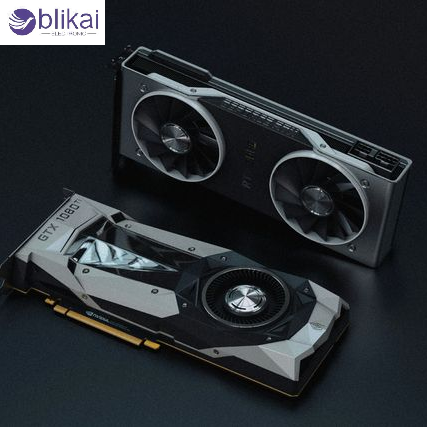
A graphics card is a discrete electronic module designed to accelerate parallel computation and graphics rendering, consisting of a GPU die manufactured on an advanced process node, multiple VRAM chips such as GDDR6 or GDDR6X connected through a wide memory bus, voltage regulation modules that convert PSU input into stable low-voltage rails, a PCI Express interface for high-bandwidth data transfer, and a thermal solution that dissipates heat generated by billions of transistor switching events, which collectively define the card’s electrical, thermal, and computational characteristics.
Why You May Need to Check Your Graphics Card
Identify the Exact GPU Model and Architecture
To determine compatible drivers or check the software compatibility, or learn to use features (like DirectX levels, ray tracing, or compute acceleration), it is required to know the specific model and architecture of a particular GPU.
Confirm Hardware Compatibility Before Upgrades
Checking of the GPU specifications may also be helpful in ensuring that the graphics card is compatible with the motherboard, power supply, display resolution and applications that it is to be used in, which will reduce the likelihood of bottlenecks or hardware incompatibilities.
Diagnose Performance or Stability Problems
GPU identification and monitoring can reveal mismatches between expected and actual performance caused by thermal throttling, driver issues, or power delivery limitations.
How to Check a Graphics Card on Windows
Check GPU Model Using Device Manager
At the PCIe hardware level, the display adapters are detected and listed in the Device Manager, where they can be easily seen as a discrete graphics card or an integrated graphics card, but little details are given beyond the device name.
Use DirectX Diagnostic Tool (DxDiag)
DxDiag offers information about the name of the graphics card, version of the driver, and support of the DirectX features, as well as display memory, which comes particularly handy when it comes to troubleshooting game compatibility and graphics API problems.
Monitor GPU Activity in Task Manager
Task Manager exposes real-time GPU utilization, memory usage, and engine-level activity, enabling users to verify that the correct GPU is active under load and to distinguish integrated graphics from dedicated graphics cards.
How to Check the Graphics Card on macOS
macOS reports graphics hardware through the “About This Mac” interface, where users can view GPU model, memory type, and Metal support level, which is critical for determining compatibility with graphics-intensive and creative applications optimized for Apple’s graphics stack.
How to Check a Graphics Card on Linux
Users of Linux normally diagnose graphics card hardware with system-level device enumerations to identify PCIe name, driver binding and running kernel modules, which give a low-level perspective of the way the operating system communicates with the graphics card.
How to Check the Graphics Card in BIOS or UEFI
BIOS and UEFI firmware detect the graphics card during system initialization and list it as a PCIe device, allowing users to verify hardware recognition, configure the primary display adapter, and diagnose issues related to boot failures or display output.
How to Check Detailed GPU Specifications
Core GPU Specs to Verify
The major specs are GPU architecture, the number of processing units, base and boost clock speed, and graphics/compute featureset support, which defines the potential theoretical performance of a given chip.
Memory and Bandwidth Characteristics
VRAM type, capacity, memory bus width, and memory effective bandwidth will have a direct impact on the effectiveness of rendering performance, texture, and high data workloads.
Power and Electrical Parameters
TDP ratings, auxiliary power connectors, and voltage regulation quality determine whether a graphics card can sustain high performance without instability or excessive heat.
How to Check Graphics Card Performance and Health
Monitoring Temperature and Clock Behavior
Stable operating temperatures and consistent clock speeds indicate healthy thermal and electrical conditions, while frequent throttling suggests cooling or airflow issues.
Identifying Signs of GPU Failure
Artifacts, driver crashes, black screens, or system instability often point to underlying GPU or VRAM degradation rather than software-only problems.
How to Physically Inspect a Graphics Card
Physical inspection allows verification of model markings, PCB layout, VRAM placement, and cooling design, and can reveal visible damage, dust buildup, or component wear that affects long-term reliability.
Integrated Graphics vs Dedicated Graphics
Integrated graphics integrated in the CPU and shared system memory have lower power consumption, and limited performance, but dedicated graphics cards are stand-alone PCIe devices with a separate VRAM, more power demand, and much higher computational throughput.
Common Issues When Checking Graphics Cards
The failure of proper determination, the absence of the drivers, several-gpu collisions, or faulty software notifications can cause confusion; that is why, the correlation of the data in the GPUs of different system programs can be good.
FAQ
How do I check what graphics card I have?
In order to confirm your graphics card, you could check the display adapter in your OS hardware or performance options which would show the model of the GP which was detected by the operating system.
How can I check my GPU specs without opening my PC?
The operating system diagnostic tools will show the specifications of the GPU which are the model, the quantity of memory and the version of the driver of the graphics card, imprinted on the hardware.
How do I know if my graphics card is integrated or dedicated?
If the GPU is listed as part of the CPU and uses shared system memory, it is integrated; if it appears as a separate PCIe device with its own memory, it is dedicated.
Can I check my graphics card model from BIOS?
Yes, BIOS or UEFI firmware typically lists detected graphics devices and allows you to confirm GPU presence at the hardware initialization stage.
How do I check if my GPU supports a specific game or application?
Compare your GPU model and supported feature levels with the software’s published minimum and recommended system requirements.
Conclusion
A graphics card check is not just a simple matter of checking a name provided by your software, to ensure that you have the correct graphics card, you need to know the specifications of the graphics card, its power consumption and thermal properties which directly influence your system performance and stability and with the help of operating system utilities, firmware checks and hardware inspection, you will be able to know what graphics card you actually have, what is going on wrong and make the correct decision about upgrading.
Some images are sourced online. Please contact us for removal if any copyright concerns arise.





