


How to Remove a Graphics Card Safely: GPU Hardware Guide
 588
588Introduction
A graphics card is not merely an add-on device, but a complicated electronic subsystem containing a high-density semiconductor processor, high-performance memory devices, multilayer printed circuit boards and delicate power control circuitry. Lifting out a graphics card incorrectly may permanently damage the graphics card and also the PCI Express slot, power connectors, and other components of the motherboard.
This is a guide on the safe removal of a graphics card, in terms of hardware and electronics components. It is geared towards PC builders, technicians, gamers, system integrators and anyone who wants to preserve the money they have invested in hardware upgrades, diagnosing, cleaning or moving a computer.
What Is a Graphics Card
Key GPU Hardware Components You Should Know
A contemporary graphics card is a PCB that combines multiple important electronic subsystems in one PCB. The graphics processing unit chip itself is a very sophisticated semiconductor chip produced by nanometer-scale processes and assembled to the board by way of BGA. Around the GPU, there are several VRAM chips, most commonly, GDDR6 or GDDR6X, that run at very high data rates and demand very high data signal integrity. The power delivery system comprises modules of voltage regulators (VRMs), MOSFETs, inductors, and capacitors that step the 12 V of input power into stable and low-voltage and high-current supply rails to the GPU and memory.
The cooling system-fans, heatsink, heat pipes or vapour chambers are physical connectors to the PCB, and provide a large mass. The PCIe slot and case bracket directly bear this weight, and therefore, they should be handled carefully during their removal.
How a Graphics Card Is Installed in a Computer
A graphics card is connected to the computer in a PCI Express x16 slot on the motherboard. This slot offers mechanical support as well as high-speed data connectivity. An end slot retention latch secures the card in the slot to avoid accidental disconnection. Screws fastening the metal bracket of the card to the computer case also give the card added mechanical stability.
The power supply provides specific PCIe power ports via 6-pin, 8-pin, or more 12VHPWR and 12V-2x6 connectors to the power supply unit. These cables should be removed prior to making attempts to take out the GPU.
Safety Precautions Before Removing a Graphics Card
Powering Down and Disconnecting the System
One should ensure that a computer is completely shut off before extracting a graphics card. This is doing a good shutdown as opposed to leaving the system in sleep or hibernation mode. Once switched off, the power supply switch must be switched off, and a power cable must be pulled out. It can also be recommended that after unplugging, the power button should be pressed multiple times to make sure that the remaining energy the capacitors store on the motherboard and the graphics card can be released.
Electrostatic Discharge (ESD) Protection
Electrostatic discharge is another underestimated risk in the handling of electronic components. Even a static discharge that is not felt by a human being can be in the range of several thousand volts, which is enough to destroy the memory chip or logic circuits of a GPU internally. This risk can be greatly lowered by the use of an anti-static wrist strap that is attached to a grounded location.
Preparing a Safe Work Environment
A clean, stable, non-conductive surface is essential. The lighting is adequate as well to observe the PCIe latch, power connectors and mounting screws. The appropriate screwdriver size will eliminate stripped screws and unintentional slipping that may harm the PCB or other components around the PCB.
Tools Required to Remove a Graphics Card
Essential Tools
The graphics cards of most models can be detached using nothing but a Phillips-head screwdriver. An anti-static wrist strap should be highly considered as a protection against ESD-related failures, which are not directly evident, but may reduce the life of the components.
Optional Tools for Large or High-End GPUs
Brackets and anti-sag devices are usually provided on high-end GPUs. These may require additional screws or tools to remove. Power cables can be temporarily held out of the way by cable managing tools or velcro straps when removing them temporarily.
Step-by-Step Guide to Removing a Graphics Card Safely
Step 1 – Turn Off and Open the Computer Case
Having made certain that the system is not running and that all plugs are disconnected, take the side panel of the case off. The majority of the contemporary cases involve the use of thumbscrews, whereas some involve the use of a screwdriver. Store the panel somewhere safe so that it is not scraped or bent.
Step 2 – Disconnect GPU Power Cables
Locate the PCIe power connectors attached to the graphics card. Push the release tab of each connector and then drag it out of the connector. Do not pull on the cable; ensure that the internal contacts are not loose and the connector housing is not broken. Newer high-power connectors should be removed carefully and evenly to avoid stressing the pins.
Step 3 – Unscrew the GPU From the Case Bracket
Use a screwdriver to remove the screws that attach the GPU bracket to the case. The graphics card is being held by one hand; the final screw is being purchased by the other.
This prevents a sudden downward force that could damage the PCIe slot or flex the PCB.
Step 4 – Release the PCIe Slot Latch
The PCIe slot will have a small retention latch at its end. The graphics card should be unlocked by pressing or pulling this latch in accordance with the graphics card design. Numerous slots are broken by the attempts of users to pull the card out without releasing this latch.
Step 5 – Remove the Graphics Card From the Motherboard
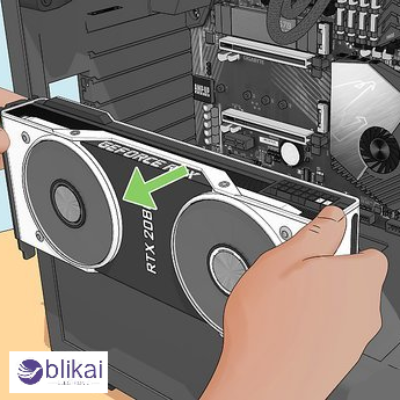
Once the latch has been released, a straight pull out of the PCIe slot will remove the graphics card. The card must not be overtwisted or rocked. Use both hands to maintain even pressure and control.
Common Mistakes to Avoid When Removing a GPU
Among the errors that are likely to occur is failing to switch off power cables prior to removing the card. The other common mistake is the use of excessive force when there is still a PCIe latch. Touching the gold PCIe contacts or exposed circuitry can contaminate contacts or introduce static damage. Removing a GPU while the system is still connected to power is a serious safety risk and should never be done.
How to Handle and Store a Graphics Card After Removal
Proper Handling of GPU Hardware
Always hold a graphics card by its edges or metal bracket. Avoid touching the PCB surface, solder joints, or connector fingers. This reduces the risk of ESD damage and contamination.
Safe Storage and Packaging
In case the graphics card is not installed immediately, please put it in an anti-static bag. Preferably, please keep it in its original package, which is shock and static protective. In case of the lack of original packaging, make sure the card is kept in a dry and humid place.
Special Considerations for Modern and High-Power Graphics Cards
Removing Large Triple-Slot or Heavy GPUs
Bulky GPUs also cause high mechanical loads on the PCIe slot. It is necessary to eliminate them gradually and uniformly. Certain types of systems have brackets to support the GPUs, which have to be removed initially to avoid binding during extraction.
Liquid-Cooled or Hybrid Graphics Cards
Liquid-cooled GPUs can have hoses attached to radiators fitted in other components of the case. Before removal, there should be adequate slack, and it should not be kinked or twisted because this may hinder cooling performance.
When and Why You Might Need to Remove a Graphics Card
Graphics cards will often be removed to upgrade them, resolve display problems, clean up dust or apply thermal paste, or to have a system ready to travel. Professionally, there might also be the need to remove the GPU in order to perform diagnostic testing or component-level testing.
How to Reinstall or Replace a Graphics Card Safely
Before reinstalling a graphics card, inspect the PCIe slot for debris or damage. Insert the card into the slot, ensuring that the card fits into the slot easily and keeps clicking into place. Install the screws on the brackets, and reattach the power cables and ensure all connectors are completely fitted before starting the system.
FAQ
Do I need to uninstall GPU drivers before removing the card?
Uninstalling GPU drivers is not required for physical removal. The operation of the software is influenced by drivers only. Removal of the driver can, however, be suggested in case of switching to a brand of GPU, to eliminate compatibility risks.
Is it safe to remove a graphics card without an anti-static strap?
It is possible, but not ideal. In the absence of ESD shielding, the chances of statistical damage increase. Base-plating, often by patting with metallic areas of the case, minimizes the risk, but does not prevent it.
Can I remove a graphics card from a laptop?
Removable graphics cards are not provided in most laptops, as the graphics card is soldered directly to the motherboard. Only certain workstations or modular laptops support removable GPU modules.
Conclusion
A graphics card is one of the most sophisticated and useful electronic parts of a computer system in the present-day era. Understanding its mechanical, electrical, and electrostatic sensitivities is essential when removing it. By following correct shutdown procedures, using proper ESD precautions, and applying controlled mechanical handling, you can remove a GPU safely without risking damage to the card or the system.
Some images are sourced online. Please contact us for removal if any copyright concerns arise.





